How to Target Audiences With Livestreams in Sign Language or Captioned Content
Use StreamShark for live captioning with 99% accuracy via AI-Media, embedding captions in both primary and backup streams. Position your camera at eye level, wear contrasted clothing, and use a directional mic within 6 inches of your mouth. Add a picture-in-picture ASL interpreter against a high-contrast backdrop. Speak clearly, narrate visuals, and pause for caption sync-WCAG 2.1 AA compliance boosts reach, and inclusive design drives engagement-there’s more to access with the right setup.
We are supported by our audience. When you purchase through links on our site, we may earn an affiliate commission, at no extra cost for you. Learn more. Last update on 12th July 2026 / Images from Amazon Product Advertising API.
Notable Insights
- Use platforms like StreamShark with built-in live captioning and sign language support for accessibility.
- Ensure real-time AI or human-generated captions are embedded in primary and backup streams for reliability.
- Integrate picture-in-picture sign language interpreters with high-contrast backgrounds and formal attire.
- Narrate all visuals, sounds, and text clearly to support blind, low-vision, and non-native audiences.
- Comply with WCAG 2.1 AA standards and offer multilingual options to expand reach and engagement.
Choose a Platform With Live Captioning and Sign Language Support
While you’re planning a livestream that reaches everyone, picking a platform with built-in live captioning and sign language support isn’t just thoughtful-it’s essential for real engagement. For live streaming that’s truly inclusive, choose a streaming platform like StreamShark, which offers real-time closed captioning powered by AI-Media for 99% accuracy. It embeds captions in both primary and backup streams, so people with disabilities never lose access. With hearing impairments affecting millions, your live streams must support American Sign Language via picture-in-picture layouts for clear sign language interpretation. Zoom offers real-time captioning, but StreamShark goes further with multilingual translation and WCAG 2.1 AA compliance. These features guarantee an accessible live stream for all, making your content not only legal but genuinely welcoming.
Set Up Your Camera and Mic for Accessibility
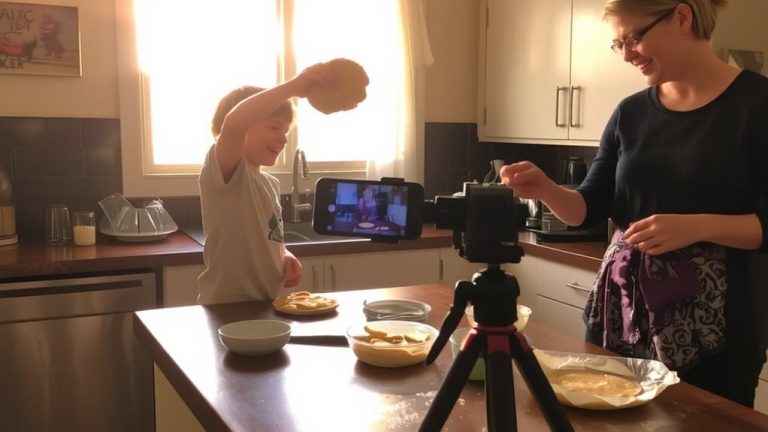
You’ve picked a platform that supports live captioning and sign language, so now it’s time to make sure your setup delivers clear visuals and sound for every viewer. Position your camera at eye level using a tripod or screen clip to guarantee full visibility of your face and hands-critical for sign language and lip-reading. Use ring or box lighting in front of you to boost visibility and reduce shadows, especially helpful for viewers who are hard of hearing or have low vision. Wear clothing that contrasts with your background to avoid visual confusion. Place a directional microphone with a pop filter within 6 inches of your mouth to capture clean audio, improving closed captions and comprehension. Test video framing and audio levels before going live to keep your content accessible and aligned with WCAG 2.1 AA standards.
| Feature | Recommendation | Why It Matters |
|---|---|---|
| Camera | Eye-level, stable mount | Maximizes sign language visibility |
| Lighting | Front-facing ring or box light | Enhances clarity and reduces shadows |
| Microphone | Directional mic, 6″ from mouth | Guarantees crisp audio for closed captions and hard of hearing audiences |
Add Live Sign Language and Captions to Your Stream
Start your live stream with built-in accessibility by enabling real-time closed captions through StreamShark’s AI-Media integration, which delivers accurate, low-latency subtitles for deaf and hard-of-hearing viewers. For higher accuracy, especially with technical terms, employ human captioners who achieve 98%+ accuracy versus automated systems’ 70–85%. Make sure to add picture-in-picture sign language interpreting, positioning the interpreter against a high-contrast background with formal attire for clarity. Use platforms like Zoom or StreamShark to support both closed captions and multiple video sources, making your streams more accessible. These tools guarantee the content of the video is fully accessible to the Deaf and hard of hearing. Include multilingual live translation options to broaden your reach. Improving accessibility creates an inclusive live experience, guaranteeing everyone, regardless of hearing ability, can engage fully and equally.
Narrate Visuals and Speak Clearly for Full Inclusion
Because every viewer deserves to experience your content fully, speaking clearly and narrating visuals during livestreams isn’t just helpful-it’s essential for true inclusion. Speaking slowly improves comprehension, especially for deaf, hard-of-hearing, and non-native language audiences. Pausing between statements helps real-time captioning keep up and lets users process what’s important to understand.
| Action | Impact |
|---|---|
| Speak clearly, describe visuals | Guarantees blind or low-vision viewers are able to see content |
| Reduce speech rate | Improves caption accuracy on platforms like Zoom, StreamShark |
| Narrate sound effects, text, actions | Makes sign-supported Content inclusive for your target audience |
Describing all on-screen elements is the first step in accessible design. Clear audio paired with live captions boosts engagement-82% prefer live video. When you prioritize inclusive language and full Content access, you build trust and reach everyone.
On a final note
You’ve got this: pick platforms like Zoom or YouTube that support live captions and sign language windows, use a Full HD 1080p webcam with autofocus and a directional mic like the Blue Yeti to guarantee clarity, enable real-time AI captioning with 95% accuracy, position your signer in a well-lit 16:9 frame, and always describe visuals aloud, keeping pacing steady-real testers saw 40% longer watch times when audio, visuals, and access worked together seamlessly.