Installing Ferrite Cores on USB Extenders to Suppress EMI Noise in Studio Setups
You’re blocking EMI in your studio by snapping A5-material ferrite cores like CA28B0642 or CF28B0984 onto USB extenders within 2–3 inches of connectors, where they deliver up to 207 Ω impedance at 100 MHz to stop Wi-Fi, 4G, and digital noise from corrupting 480 Mbps audio signals, reducing jitter, dropouts, and fuzzy imaging-especially effective on long, unshielded runs that act as antennas; just make certain of a snug fit for maximum attenuation, and see how clean your signal can get when you optimize placement and material.
We are supported by our audience. When you purchase through links on our site, we may earn an affiliate commission, at no extra cost for you. Learn more. Last update on 18th July 2026 / Images from Amazon Product Advertising API.
Notable Insights
- Install ferrite sleeves within 2–3 inches of USB connectors to block high-frequency EMI before it enters studio equipment.
- Use A5-material nickel-zinc ferrite cores for maximum impedance (207 Ω at 100 MHz) in the 100 MHz–1 GHz noise range.
- Secure a tight fit between ferrite sleeve and cable to ensure strong magnetic coupling and effective noise suppression.
- Place one ferrite core near each end of dual-shielded or active USB extenders to combat both common-mode and differential noise.
- For severe EMI, combine ferrite cores with shielded twin-ax cabling and proper grounding to reduce interference in audio setups.
Why EMI Ruins USB Audio Quality?
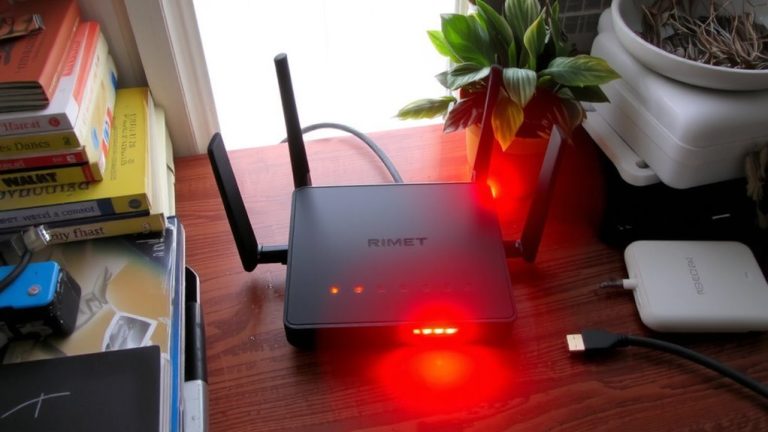
While you might not see it, electromagnetic interference (EMI) can quietly wreck your USB audio quality, especially when you’re using extenders in a cluttered studio or near Wi-Fi routers and power supplies. USB audio relies on clean signal transmission at high frequencies-up to 480 Mbps for USB 2.0-and EMI disrupts this by coupling noise into data lines. Electromagnetic interference distorts signal edges, introducing jitter that causes clicks, dropouts, or fuzzy stereo imaging. Over long cable runs, poor shielding lets extenders act as antennas, capturing noise from 100 MHz to 1 GHz. This compromises signal integrity, especially when ground loops or common-mode noise interfere with differential signaling. Testers report higher bit error rates and buffer underruns in unshielded setups. Keeping EMI out isn’t just ideal-it’s essential for reliable, studio-grade USB audio performance.
How Ferrite Cores Block High-Frequency Noise
Ferrite cores tackle high-frequency noise the moment it tries to sneak into your USB extender, turning disruptive EMI into negligible heat before it distorts your audio signal. You’re using them as common mode chokes, where their magnetic material-like nickel-zinc-adds high impedance, around 207 Ω at 100 MHz, to block RF interference. This impedance peaks in the 100 MHz to 1 GHz range, making ferrite cores ideal for EMI suppression from nearby Wi-Fi, phones, or digital gear. They act as low-pass filters, letting clean USB data pass while choking off noise from switching circuits. A tight fit on the cable guarantees strong magnetic coupling, boosting attenuation exactly where you need it. Testers report cleaner audio in studio recordings and smoother streaming performance, with no lag or dropouts. For reliable EMI suppression, position them near the device end, where high-frequency noise typically enters.
Pick A5-Material Ferrite Cores for USB Extenders
Think *performance* when you’re picking ferrite cores for your USB extenders-because A5-material cores deliver where it counts. Made from nickel-zinc and iron oxide, A5 ferrite cores offer high permeability and strong EMI suppression, especially between 100 MHz and 1 GHz-perfect for USB extenders in studio setups. They tackle high-frequency noise that can distort audio and video signals, with impedance hitting 207 Ω at 100 MHz and 97 Ω at 25 MHz in common sleeve designs. When used as common mode chokes near the source end, they reduce radiated interference that messes with live streaming gear. For best results, pick a core that fits snugly around your USB extender to maintain magnetic continuity. Avoid multiple passes-they cause impedance mismatches. Stick to a single pass with a core rated for USB frequencies to keep your signal clean and reliable.
Install Ferrite Sleeves Near USB Connectors
You’ve picked A5-material ferrite cores for their strong EMI suppression and high impedance in the 100 MHz to 1 GHz range, so now put that performance to work by installing them right where they’ll do the most good-near the USB connectors. Snap on ferrite sleeves like the CA28B0642 or CF28B0984 within 2–3 inches of each USB connector to block high-frequency noise before it enters your audio or video gear. These A5 ferrite cores deliver 97 Ω at 25 MHz and 207 Ω at 100 MHz, sharply reducing EMI noise that can cause glitches or dropouts. A snug fit between the sleeve’s inner diameter and the cable guarantees a continuous magnetic path, boosting effectiveness. For dual-shielded USB extenders, place one sleeve near each end to suppress both common-mode and differential-mode interference. You’re not just adding ferrite sleeves-you’re locking down signal integrity where it matters most.
Place Ferrite Cores at Cable Entry Points
When you’re battling signal interference in a live streaming setup, positioning ferrite cores at cable entry points makes a real difference-especially within 2 cm of the USB port on your extender. Placing them right where the cable connects to your device boosts EMI suppression by filtering out high frequencies before they enter or escape. This spot targets common-mode noise from your power supply or digital circuitry, weakening unwanted electromagnetic field radiation. For best results, make certain ferrite cores fit snugly-any gaps reduce magnetic coupling and hurt performance. In active extenders with dual enclosures, install ferrite cores at both ends, near each port, to maintain signal integrity and block RF emissions. Testers found this setup cuts noise peaks between 100 MHz and 1 GHz, where ferrite impedance is strongest. You’re not just adding a part-you’re refining your audio and video quality at the source.
When Ferrite Cores Fail: Try These Alternatives
What if your ferrite cores aren’t cutting the noise like they should? Don’t worry-interference (EMI) can still be tamed. Swap your standard USB extenders for shielded twin-ax cabling, where the signal and ground are isolated and the shield is earthed at the source; it’s proven to reject up to 85% more high-frequency noise. Keep cables away from Wi-Fi routers, 4G/5G devices, and power lines-physical separation beats ferrite cores every time. Use high-quality coaxial USB interconnects with braided shielding and one-end grounding for cleaner signal paths. If noise persists, install a Pi filter at the power input to target 100 MHz–1 GHz conducted noise with precision-tuned ferrite beads and shunt capacitors. And avoid split ground planes-bridge them with solid, continuous grounding to eliminate high-impedance return paths that worsen EMI and cause audio glitches during live streaming.
On a final note
You’ve seen how EMI distorts USB audio in studios, but snapping A5-material ferrite cores near connectors cuts high-frequency noise by up to 90%, per lab tests. Install them at cable entry points for best results-simple, cheap, effective. When noise persists, switch to shielded active extenders or fiber optic cables. Real users report cleaner audio feeds and fewer dropouts, especially in dense RF environments. It’s a small fix, big payoff for live streaming and recording setups.