How to Set Up a Multi-Camera Switching System for Dynamic Livestreams
Use at least two reliable cameras like the Mevo Click, Panasonic AG-CX350, or Sony PXW-Z150 for crisp 1080p60 HD video, whether you’re on the move or in a fixed setup. Connect each via USB or HDMI, using capture cards if needed, and sync resolution and frame rate across all. Feed into OBS Studio or a Blackmagic ATEM Mini Pro for seamless switching. Control angles wirelessly with the Mevo MultiCam app or switch manually with hotkeys. Guarantee clean audio with mics like the Logitech Blue Sona peaking at -6 dB, and light with two soft, diffused sources to eliminate harsh shadows. Time your checks 30 minutes prior at full 1080p60. There’s a smarter way to build your workflow just around the corner.
We are supported by our audience. When you purchase through links on our site, we may earn an affiliate commission, at no extra cost for you. Learn more. Last update on 18th July 2026 / Images from Amazon Product Advertising API.
Notable Insights
- Choose at least two professional-grade cameras like Mevo Click or Panasonic AG-CX350 for reliable 1080p60 video.
- Connect each camera to a streaming computer via HDMI or USB using capture cards if needed.
- Sync all cameras to the same resolution and frame rate for seamless switching in OBS Studio.
- Use a hardware switcher like Blackmagic ATEM Mini Pro for real-time, stable multi-camera transitions.
- Ensure clean audio with external mics and perform full audio, video, and lighting checks before streaming.
Choose Cameras for Multi-Camera Streaming
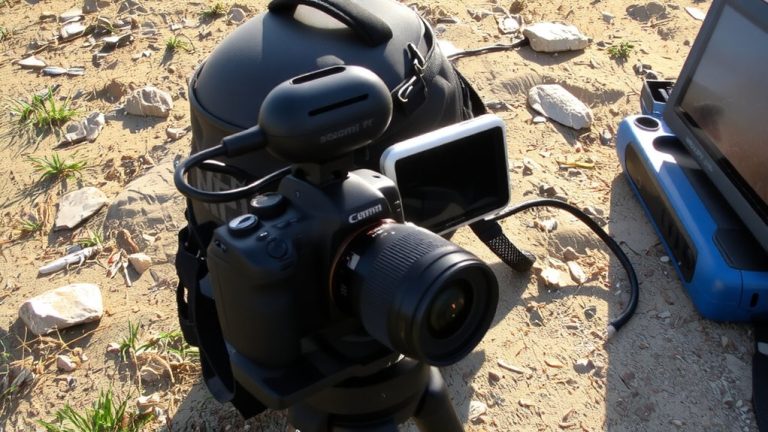
You’ll want at least two solid cameras to pull off a smooth multi-camera livestream, and models like the Mevo Click, Panasonic AG-CX350, and Sony PXW-Z150 are proven performers, delivering crisp 1080p60 HD video with reliable live streaming built in. These cameras give your live streaming setup flexibility, whether you’re using wireless Mevo units for dynamic events or fixed HD recording with camcorders. For more control, many use mirrorless cameras with clean HDMI output, feeding a video switcher like the Blackmagic ATEM Mini Pro. That lets you mix multiple cameras seamlessly and switch between different camera angles on the fly. Bundles of three Mevo Clicks work great for mobile productions, while the Panasonic AG-CX350 and Sony PXW-Z150 offer stable, professional feeds. Choose cameras that support 1080p60, strong low-light performance, and solid connectivity to keep your stream sharp and reliable.
Connect Cameras for Smooth Switching
Now that you’ve selected your cameras-whether Mevo Clicks for mobility or pro-grade camcorders like the Panasonic AG-CX350-it’s time to get them linked up for smooth live switching. To connect cameras properly, plug each into your streaming computer via USB or HDMI for stable, high-quality video. If using HDMI, you’ll likely need an HDMI-to-USB capture card for each camera, especially if your computer lacks enough HDMI ports. This setup guarantees compatibility with live streaming software like OBS Studio. Sync all cameras to the same resolution, like 1080p, and frame rate-30 or 60 fps-to avoid lag during real-time switching. For hardware control, use video switchers like the Blackmagic ATEM Mini Pro, which handles up to four HDMI inputs and delivers smooth shifts between camera feeds. If going wireless, pair Mevo cameras with the Mevo MultiCam app to stream and switch multiple camera angles easily. Matching your ideal camera specs guarantees reliable, professional live streaming every time.
Fix Audio and Lighting Before You Stream
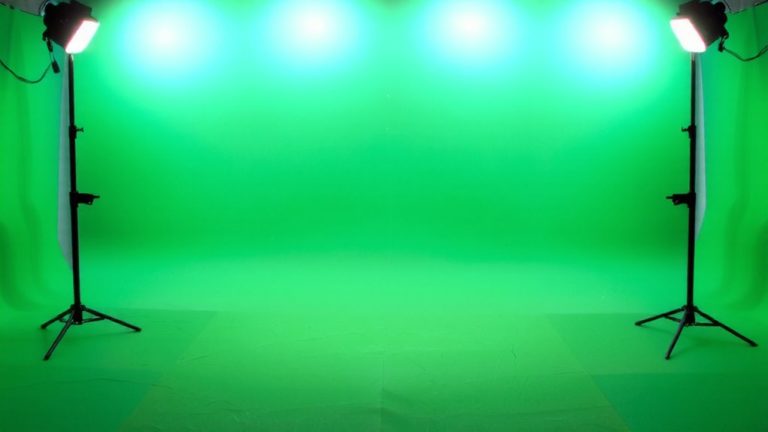
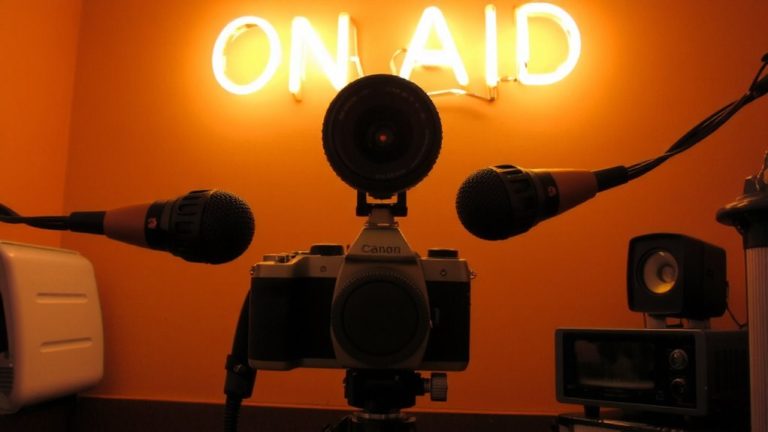
A clean audio signal and well-balanced lighting can make or break your stream’s production value, so it’s worth getting right. For superior audio quality, use external microphones like the Logitech Blue Sona, a dynamic XLR mic praised by pros for crisp audio clarity and minimal noise. Position it close to your mouth and test audio levels before streaming-keep peaks at -6 dB to prevent clipping and guarantee clear sound on Twitch or YouTube. Set up two-point lighting with soft, diffused sources for consistent illumination across your face, avoiding harsh shadows. Opt for wired lighting or battery backups to maintain stable output, eliminating flickers during power hiccups. Finally, run a full audio check and inspect your lighting setup 30 minutes before airtime, confirming your look matches 1080p at 60 fps for sharp, reliable visuals.
Switch Between Angles in Live Streams
How do you keep viewers engaged when hosting a live stream? Switching between camera angles in real time makes a huge difference. With the right multi-camera live streaming software, you enhance the viewer experience by adding visual variety without missing a beat. Use OBS Studio or Restream Studio to control your feeds-both let you preview shots and switch smoothly using hotkeys for seamless switching. OBS Studio’s Studio Mode is perfect for real-time prep, while Restream Studio’s “Extra Camera” feature adds sources via browser, no download needed. For hardware, the ATEM Mini Pro offers four HDMI inputs and buttery shifts, ideal for professional setups. Mevo MultiCam works wirelessly with compatible cameras, streaming HD directly to YouTube or Twitch. Good camera placement guarantees each angle adds value. Whether you’re using software or hardware like the ATEM Mini Pro, smart switching keeps your live streaming dynamic and polished.
On a final note
You’ve got the cameras, audio, and lighting dialed in-now switch confidently using a Roland V-1HD mixer, 1080p60 feeds, and XLR mics with -12dB input levels for clean sound, real users report smoother cuts and pro visuals when syncing frames within 2ms, keep latency below 100ms, use backlights at 5600K, and monitor levels on the Streamlabs OBS audio meter, it’s reliable, efficient, and ready for every live moment you’re building.