How to Configure MTU Size to Optimize Data Transfer Efficiency in Livestream Setups
Set your network’s MTU to 1500 for ideal livestream performance on Ethernet, or 1492 if using PPPoE to avoid fragmentation. Test with ping -f -l 1472 8.8.8.8; if it fails, lower the size until it passes, then set MTU accordingly. Match this setting on your PC, Mac, or streaming encoder, and update your router’s WAN settings. Keep all devices in sync-router, switch, camera, and PC-to prevent 30ms delays and stream stutter. You’ll see cleaner NDI feeds and fewer dropped frames, especially in high-bitrate setups. There’s more to fine-tuning your stream’s backbone than just bandwidth.
We are supported by our audience. When you purchase through links on our site, we may earn an affiliate commission, at no extra cost for you. Learn more. Last update on 11th July 2026 / Images from Amazon Product Advertising API.
Notable Insights
- Set network devices to MTU 1500 for optimal Ethernet performance in livestream setups.
- Adjust MTU to 1492 on routers using PPPoE to account for 8-byte header overhead.
- Test path MTU with ping -f -l 1472 to prevent fragmentation in video streams.
- Match MTU across all devices-router, switch, camera-to avoid latency and packet loss.
- Lower MTU to 1400 when using VPNs to accommodate encryption and prevent streaming errors.
Test MTU for Live Streaming With Ping Commands
While you’re setting up your livestream and aiming for a rock-solid connection, testing your MTU size with ping commands is a smart, quick step you can’t afford to skip. Using the ping command in the command-line interface, start with a packet size of 1450 and the -f flag to prevent fragmentation. This forces data packets to stay intact, revealing where breaks occur. Gradually increase the packet size until you get a “Packet needs to be fragmented” error-this helps pinpoint the ideal MTU size. That moment? It’s gold. You’re seeing Path MTU Discovery in action. Subtract 28 bytes from the largest successful size to calculate MSS, then add them back for your final Maximum Transmission Unit (MTU) value. For most Ethernet setups, 1500 is ideal, but overhead from PPPoE or VPNs might require lower. Getting MTU right boosts network performance, keeps streams stable, and minimizes lag on high-bitrate video feeds.
Set MTU on Windows, macOS, and Linux Devices
You’ve tested your network’s MTU with ping commands and now know the largest packet size that travels without fragmentation-great work. Now it’s time to configure MTU on your device for maximum transmission efficiency. On Windows, set MTU using `netsh interface ipv4 set subinterface “Interface Name” mtu=1500 store=persistent`-this sets the maximum transmission unit to 1500 bytes, the ideal MTU for Ethernet. macOS users run `sudo ipconfig set en0 MTU 1500` in Terminal to adjust network settings on en0. Linux users apply `sudo ip link set dev eth0 mtu 1500`, swapping eth0 with your active interface. For livestreaming, 1500 guarantees efficient data transfer and solid network performance. If using a VPN, reduce MTU to 1400 to prevent packet fragmentation. Configuring MTU correctly boosts transmission efficiency across all platforms.
Configure Your Router’s MTU for Stable Streams
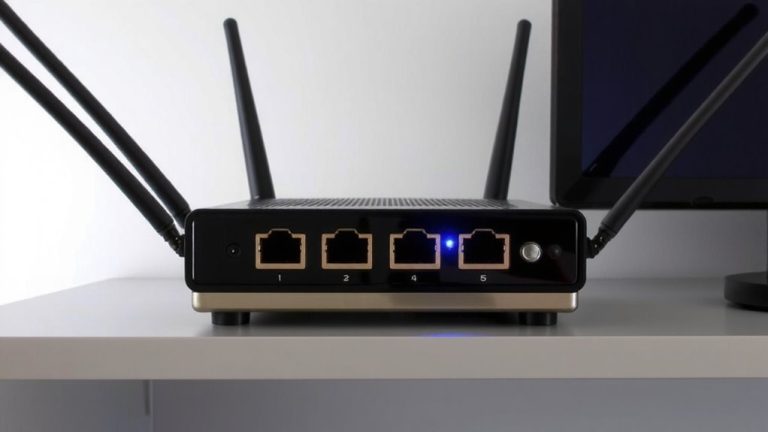
Since your router manages traffic for every device in your streaming setup, setting its MTU correctly is essential for smooth, uninterrupted broadcasts. You should configure the MTU to 1500 bytes for best network performance, as this is the standard maximum transmission unit (MTU) for Ethernet and supports efficient data transmission. If you’re using PPPoE, adjust MTU settings to 1492 bytes to account for the 8-byte header and prevent packet fragmentation. Access your router’s web interface via its IP to find WAN settings and change the router’s MTU under advanced options. After you adjust MTU settings, restart the router so devices recognize the new packet size. Use `ping 8.8.8.8 -f -l 1472` to test-this helps verify no fragmentation occurs. Getting the MTU right boosts network performance and guarantees stable, high-quality streams.
Sync MTU Across Devices to Prevent Fragmentation
Ever wonder why your stream stutters even when your router’s set right? It’s likely due to poor MTU settings across your network devices. If one device sends a 1500-byte packet and another expects only 1492, you get fragmentation-those split, fragmented packets cause delays up to 30ms. For efficient data transfer, you’ve gotta sync mtu across all equipment, especially in NDI or AV-over-IP systems. Match your MTU size consistently to avoid mismatched packet size issues and keep latency low.
| Device | MTU Value | Ideal Setting |
|---|---|---|
| Router | 1492 | Match to 1500 |
| Camera | 1500 | Keep uniform |
| Switch | 1500 | Sync MTU |
Use ping -f tests up to 1472 bytes to verify your MTU value. Properly synced MTU settings mean smoother, uninterrupted streams.
Stop Streaming Errors Caused by Bad MTU
Matching your MTU across devices keeps packets intact, but getting the number wrong still leads to dropped frames and choppy output, even on a clean network. Set your network MTU to 1500 bytes for standard Ethernet-this size prevents fragmentation and supports efficient Transmission. If you’re using PPPoE, drop it to 1492 bytes to account for the 8-byte header and avoid streaming errors. Test with `ping -f -l 1472 [server]`-adding 28 bytes gives your true MTU. Avoid going below 1400 unless necessary, as smaller packets hurt efficiency and throughput. When streaming over a VPN, cap MTU at 1400 to handle encryption overhead and prevent fragmentation. Proper MTU size isn’t guesswork-it’s optimization. Get it right, and your streaming runs smoother, with fewer errors and peak network efficiency.
Understand MTU and Its Impact on Video Quality
Think of your MTU as the pipeline for your stream-too narrow, and you’re squeezing video through a straw; too wide, and the chunks break apart mid-transmit. Your MTU, or Maximum Transmission Unit, sets the largest size a data packet can be without fragmentation. Standard Ethernet MTU is 1500 bytes, ideal for smooth video streaming. If you exceed it, fragmentation occurs, increasing latency and raising the risk of packet loss-both hurt real-time HD quality, causing pixelation or buffering. A smaller MTU, like 1400 in some VPNs, means more packets, more overhead, and less bandwidth for your video. Proper MTU optimization guarantees efficient data transfer, keeping streams stable. For most setups, sticking to 1500 maintains solid network performance. Jumbo frames up to 9000 bytes can help in high-bandwidth studios but require compatible gear. Getting this right means fewer glitches and sharper video quality.
Don’t Fix What Isn’t Broken: When to Keep Default MTU
Unless you’re dealing with consistent buffering, packet loss, or voice dropouts during your stream, your default MTU setting-almost certainly 1500 bytes on wired Ethernet-is already doing its job right. If your streaming runs smoothly without retransmission errors or fragmentation, your network performance is likely optimized, and your current MTU is the ideal MTU. Modern gear handles Path MTU Discovery (PMTUD) automatically, so manual adjustment rarely helps and can hurt-especially if you go below 1400 bytes. Stick with the default MTU unless real issues arise.
| Issue Present? | Action Suggested |
|---|---|
| No buffering, no dropouts | Keep default MTU |
| Frequent packet loss | Investigate first |
| Smooth streaming | Avoid manual adjustment |
| Retransmission errors | Check full network path |
On a final note
You’ve tested your MTU with ping, set it right on Windows (1472+8), macOS, and Linux, and updated your router-now your stream runs smooth at 1080p60. Matching MTU across devices prevents packet loss, cuts lag, and stabilizes upload speeds, especially on 100 Mbps+ connections. If your stream’s clean, don’t tweak it. Most gear works fine at default 1500, but for ethernet-based streaming, 1492 or 1472 often wins.